Setting up a dynamic copyright year in WordPress is one of those small fixes that saves you from embarrassing yourself every January. This guide covers two methods — one for Elementor Pro users, one that works free with any WordPress theme. Pick the one that fits your setup, follow the steps, and your footer year updates automatically from now on.
Set it once. Never think about it again.
Video Walkthrough
Both methods are demonstrated in the video above.
Which Method Should You Use?
| Method 1 | Method 2 | |
|---|---|---|
| Tool | Elementor Pro | WPCode plugin (free) |
| Requires | Elementor Pro license | Any WordPress theme |
| Difficulty | Easy | Easy |
| Works with free Elementor? | No | Yes |
| Time to set up | 2 minutes | 3 minutes |
If you have Elementor Pro — use Method 1, it is cleaner.
If you are on free Elementor or any other theme — use Method 2.
Method 1: Dynamic Copyright Year in WordPress With Elementor Pro
This uses Elementor’s built-in dynamic tags. No code, no plugins.
What You Will Build
A footer copyright line that looks like this:
© 2023 – 2026 Your Company Name. All Rights Reserved.
The year updates automatically every January 1st.
Step 1: Open Your Footer Template
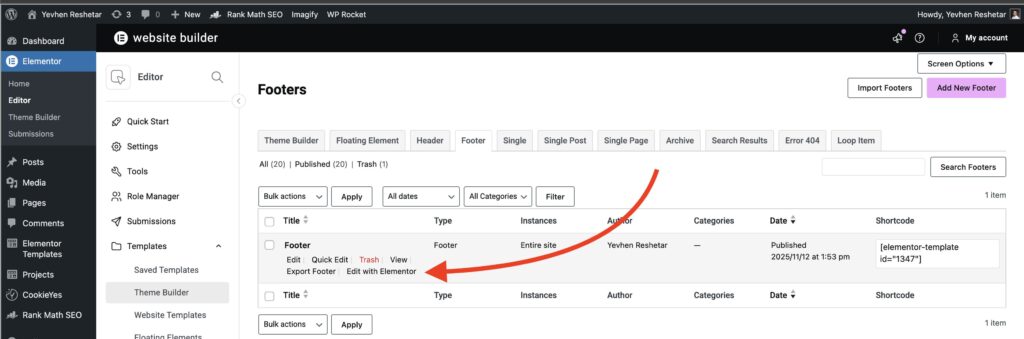
Go to Elementor > Templates > Theme Builder > Footer and open your footer for editing.
Step 2: Add a Text Editor or Heading Widget
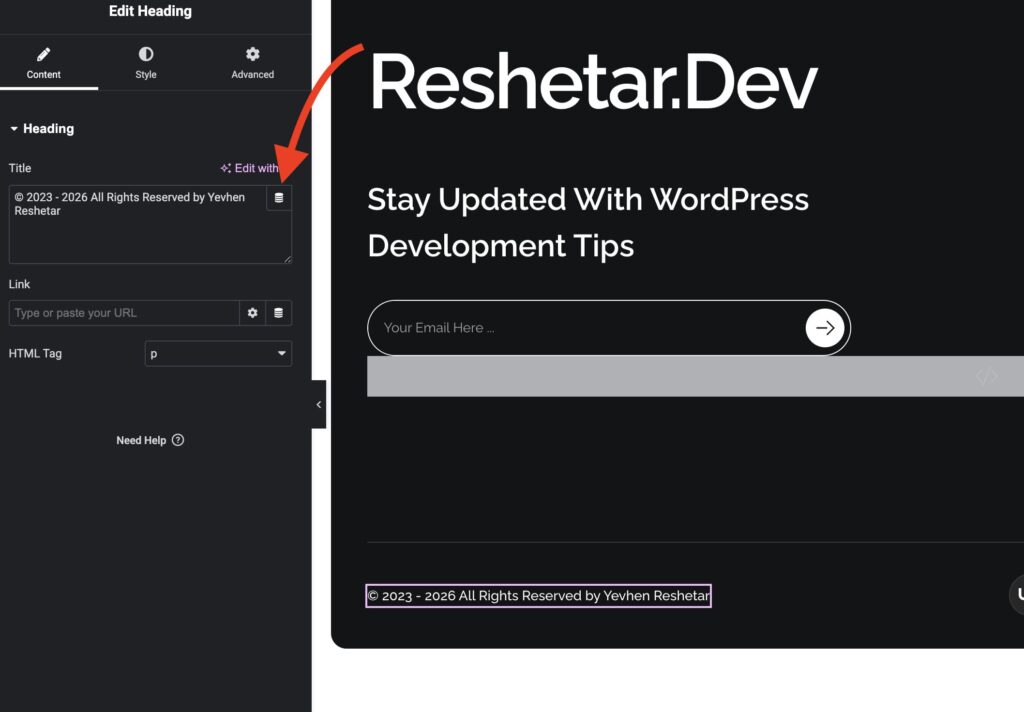
Drag a Text Editor or Heading widget into your footer where you want the copyright line. Both work the same way.
Click the dynamic icon (the small database icon) next to the content field.
Step 3: Select Current Date Time and Set Format to Y
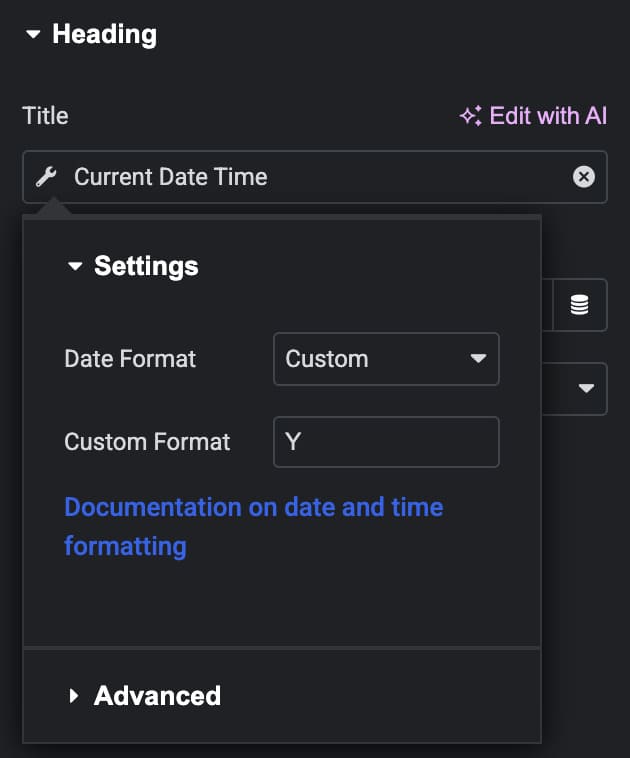
Search for Current Date Time and select it.
In the Settings panel:
- Set Date Format to
Custom - In Custom Format, type:
Y
This outputs just the current year — for example 2026.
Step 4: Set Before, After, and Fallback
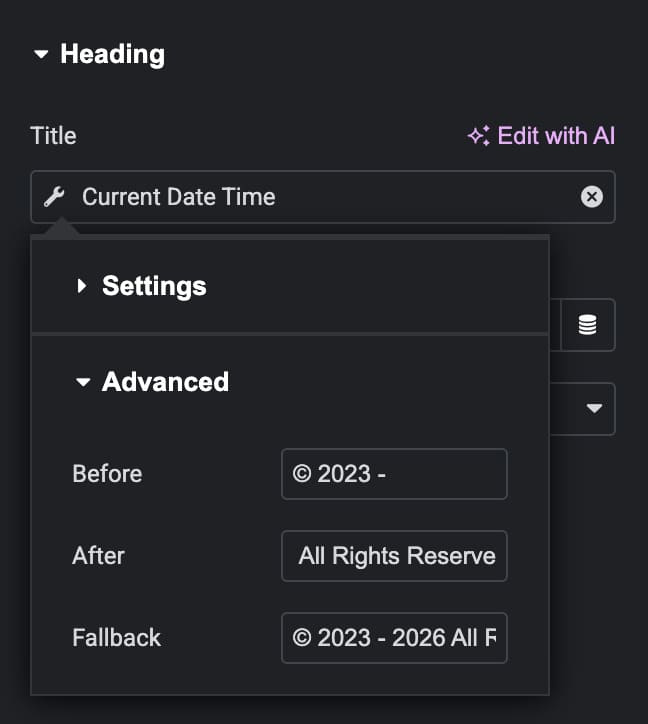
Scroll down to the Advanced section of the dynamic tag:
- Before:
© 2023 - - After:
All Rights Reserved by Your Company Name - Fallback:
© 2023 - 2026 All Rights Reserved by Your Company Name
The fallback shows if the dynamic tag fails for any reason — good to have.
Step 5: Save and Set Display Conditions
Hit Save, set display conditions to Entire Site, and publish. Done.
Your footer now shows the current year automatically. No more “oops, still says 2024” in March.
Method 2: Dynamic Copyright Year in WordPress With WPCode (Free)
This works with any WordPress theme — free Elementor, Bricks, Divi, Astra, whatever you use. No Pro license needed. Install the free WPCode plugin from the WordPress repository.
Step 1: Install WPCode Plugin
Go to Plugins > Add New, search for WPCode, and install the free version. It is the most popular code snippets plugin for WordPress with millions of active installs.
Step 2: Create a New PHP Snippet
Go to Code Snippets > Add Snippet. Select PHP Snippet and give it a name like Year Shortcode.
Paste this code:
add_shortcode('year', function() {
    return date('Y');
});
Set the snippet to Active and save.
Step 3: Use the Shortcode in Your Footer
Now go to your footer — in Elementor, just add a Text Editor widget. Wherever you want the year to appear, type the shortcode:
[year]Your full copyright line would look like this in the text field:
© 2023 - [year] Your Company Name. All Rights Reserved.WordPress will replace [year] with the current year automatically.
Result
Same result as Method 1 — a copyright line that updates on its own, works on any theme, and takes under 3 minutes to set up.
FAQ
Does Method 1 work without Elementor Pro?
No. Dynamic tags and Theme Builder are Elementor Pro features. If you are on the free version, use Method 2 with WPCode.
Does the WPCode shortcode work in Elementor free?
Yes. The [year] shortcode works in any text field that renders shortcodes — including Elementor free, Bricks Builder, and most WordPress themes.
Will the year update automatically on January 1st?
Yes, both methods use PHP’s date('Y') function which reads the current server date. No manual action needed.
Can I use a Heading widget instead of Text Editor in Elementor?
Yes. The dynamic tag works the same way in a Heading widget. Just switch the HTML tag to <p> if you need it styled as paragraph text.
What if I want to show a date range like © 2023 – 2026?
For Method 1, set © 2023 - in the Before field and the dynamic tag handles the current year. For Method 2, type © 2023 - [year] directly in the text field.
What date format do I use for a full date, not just the year?
Use d.m.Y for 12.03.2026 or F j, Y for March 12, 2026. But for copyright year, Y is all you need.
Need help with your WordPress footer or site setup? Get in touch and let’s talk.
