If you want to speed up your WordPress site, the biggest results come from mastering three key areas: choosing a quality hosting provider, implementing a solid caching and CDN setup, and properly optimizing your images. By focusing on these fundamentals, we can often take a site from frustratingly slow to impressively fast, solving the most common performance problems that hurt businesses online.
Why a Slow WordPress Site Kills Your Business

Let’s be blunt: a slow website is a silent business killer. It’s not just a minor annoyance for your visitors. In a world where everyone expects instant results, every extra millisecond your site takes to load is another reason for a potential customer to leave and never come back.
The link between site speed and revenue isn’t a theory; it’s a fact. When a user lands on a product page and has to wait, their initial interest turns into frustration. This friction leads directly to higher bounce rates, less time on your site, and—most importantly—fewer conversions.
At Reshetar.Dev, we build performance into every project from day one. It’s not an afterthought. A fast, responsive site feels professional and signals to users that you respect their time, which immediately builds trust.
The Mobile Speed Gap Is Costing You Money
This performance problem gets significantly worse on mobile, where users have almost zero patience. The statistics are shocking. The average WordPress site loads in a respectable 2.5 seconds on a desktop computer. On mobile? That number jumps to a painful 13.25 seconds.
That massive gap is where you lose money. Google’s own data shows that for every extra second a page takes to load, bounce rates can increase by 32%. Even worse, conversions can drop by 7%. You can dig into more WordPress statistics from Hostinger if you want to see the full picture.
This is a huge blind spot for many businesses. You might test your site on your fast office Wi-Fi and think everything is great, but a huge portion of your audience is seeing a completely different, agonizingly slow version on their phones.
A slow site acts like a leaky bucket for your marketing budget. You can spend thousands on ads to drive traffic, but if those visitors land on a page that takes too long to load, a significant portion of that investment is wasted before they even see your offer.
Building a Foundation for Performance
Fixing a slow WordPress site isn’t about finding one secret trick. It’s a process of systematically tackling the core issues that create drag. This guide is designed to cut through the jargon and give you a clear, actionable roadmap.
We’ll cover the essentials from the ground up:
- Choosing the right hosting: Your server is the engine of your website. A weak engine will never win the race.
- Implementing smart caching: This is your secret weapon for delivering pages almost instantly to returning visitors.
- Optimizing your media: Huge, uncompressed images are the number one cause of page bloat. I see it all the time with new clients.
- Auditing themes and plugins: Not all code is created equal. We’ll show you how to find and replace the tools that are slowing you down.
By following the practical steps in this guide, you’ll be on your way to building a faster, more effective website that provides your users with a much better experience.
Choosing Hosting That Fuels Your Website Speed
Long before you pick a theme or install a single plugin, the most critical decision for your site’s speed has already been made: your hosting. Think of it as the foundation of a house. You can’t build a stable, high-performance structure on weak ground.
Too many businesses fall into the trap of starting with the cheapest shared hosting plan they can find. It’s a classic mistake. On a shared server, your site is crammed in with hundreds of others, all fighting over the same limited pool of CPU and RAM. It’s like living in an apartment building where everyone shares one slow internet connection—as soon as one person starts streaming, everyone else grinds to a halt.
This resource battle directly tanks a key performance metric called Time to First Byte (TTFB). In simple terms, TTFB is how long it takes your server to even start responding after a visitor clicks a link to your site. A high TTFB means your server is sluggish, and no amount of on-site tweaking can fully compensate for a slow server.
Why Your Hosting Type Matters
If you’re serious about speed, you have to look beyond basic shared hosting. The right environment gives your site dedicated resources, so you get consistent performance, even when traffic surges. Let’s break down the common options you’ll encounter.
Shared Hosting: This is the budget option. It works for a brand-new blog with almost no visitors, but it quickly becomes a major performance bottleneck as soon as you start getting real traffic.
VPS (Virtual Private Server) Hosting: A huge step up. While you’re still on a physical server with other sites, a VPS carves out a private, dedicated slice of resources just for you. This isolation means a neighbor’s busy site can’t slow yours down, giving you much more stability.
Managed WordPress Hosting: The premium, hands-off solution. Companies like Kinsta, Rocket.net, or Cloudways provide servers specifically tuned for WordPress. They handle all the technical heavy lifting—security, updates, and performance—and usually include top-tier caching and a CDN right out of the box.
At Reshetar.Dev, we strongly advise clients against shared hosting for any serious business website. The small monthly savings are not worth the lost revenue from poor performance and a frustrating user experience. An investment in quality hosting pays for itself through better conversions.
The Non-Negotiable Hosting Features Checklist
When you’re looking at hosting plans, ignore the marketing fluff about “unlimited” everything. Focus on the technical specs that actually make your WordPress site run fast. Here’s what you absolutely need to look for.
Modern PHP Versions
WordPress runs on PHP, and each new version is faster and more secure. Running your site on an old version of PHP is like putting cheap, old fuel in a sports car—it just won’t perform. Your host must support the latest stable versions (ideally PHP 8.1 or higher) and give you an easy way to switch between them.
HTTP/3 Support
This is the newest version of the protocol browsers use to grab data from your server. It’s way more efficient at loading multiple files at once, which is a game-changer for modern websites loaded with images and scripts. If your host is still stuck on an older version like HTTP/1.1, you’re leaving a significant amount of speed on the table.
Strategic Server Locations
Physics still matters online. Data has to physically travel from the server to your visitor’s browser. The shorter that distance, the lower the latency and the faster your site feels. A good host will have a global network of data centers, letting you pick a server located as close as possible to the majority of your audience. This simple choice can make a huge difference in load times.
Unlocking Instant Speed with Caching and CDNs
If you’re looking for the biggest performance wins with the least amount of effort, this is where you start. Caching and Content Delivery Networks (CDNs) are the two most powerful tools in your arsenal for dramatically speeding up a WordPress site.
Think about it this way: every time a new person visits, your server has to run code, query the database, and piece everything together just to serve one page. That’s a ton of repetitive work. Caching is like creating a pre-built, ready-to-serve copy of that page.
When the next visitor comes along, your server hands them the finished HTML version instantly. This simple step takes a massive load off your server and gives the user a much, much faster experience.
Choosing Your Ideal Caching Plugin
The easiest way to get caching running is with a dedicated WordPress plugin. But the sheer number of options can be overwhelming, and they are definitely not all created equal. Some are built for absolute beginners, while others give developers fine-grained control.
A good plugin can handle around 80% of performance best practices for you, taking care of everything from page caching to compressing files and deferring scripts.
To help you decide, here’s a quick comparison of the top caching plugins I see used in the wild, highlighting where each one shines.
Choosing Your Ideal Caching Plugin
Finding the right caching plugin really comes down to your technical comfort level and your hosting setup. This table breaks down the key differences between the three most popular options.
| Feature | WP Rocket | LiteSpeed Cache | W3 Total Cache |
|---|---|---|---|
| Ease of Use | Very Easy (Beginner-Friendly) | Moderate (Server Dependent) | Difficult (Advanced Users) |
| Core Caching | Page, Browser, GZIP/Brotli | Server-Level (LiteSpeed Only) | Page, Browser, Object, DB |
| Asset Optimization | CSS/JS Minification & Defer | Excellent, with Critical CSS | Advanced Minification Options |
| Best For | Users who want powerful results with minimal configuration. It's a premium, all-in-one solution. | Sites hosted on a LiteSpeed server, as it unlocks unmatched server-level performance for free. | Developers and power users who need complete control and don't mind a complex setup process. |
For most business owners I work with at Reshetar.Dev, the simplicity and immediate impact of a plugin like WP Rocket are well worth the investment. However, if your host uses a LiteSpeed server, the free LiteSpeed Cache plugin is a no-brainer. For those who love tinkering, W3 Total Cache offers unparalleled control.
This flow chart shows how critical your hosting environment is to this entire process.
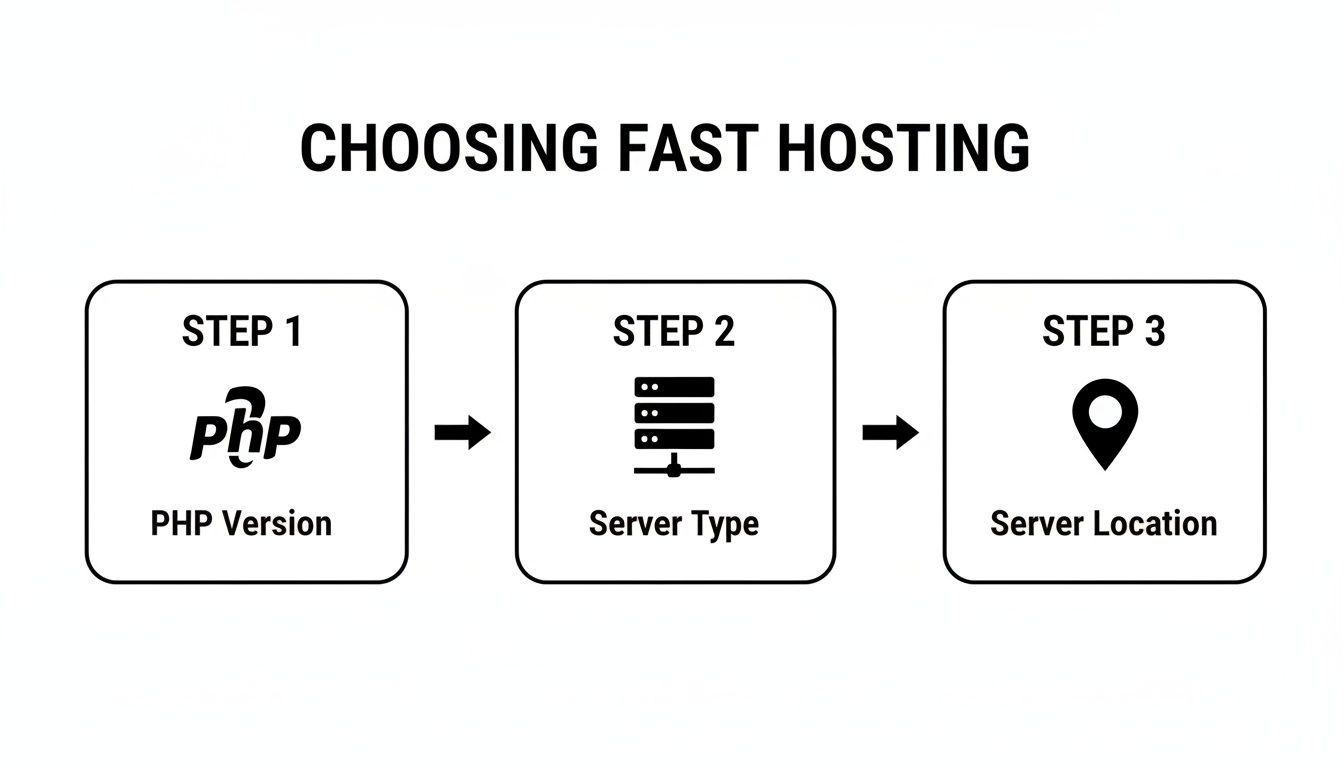
As you can see, getting the fundamentals right—like your PHP version, server type, and server location—sets the foundation for everything else.
Going Global with a Content Delivery Network
While caching optimizes your server, a CDN optimizes for geography. A CDN is a global network of servers that stores copies of your website’s static files—things like images, CSS, and JavaScript.
When a user from Japan visits your site hosted in New York, a CDN serves those files from a local server in Tokyo. The data doesn’t have to travel across the world. This simple change massively reduces latency and makes your site feel just as snappy for international visitors as it does for local ones.
Think of a CDN as setting up local distribution centers for your website’s heaviest parts. Instead of shipping everything from one central warehouse, you fulfill orders from the location closest to the customer, ensuring faster delivery every time.
Many modern caching plugins and hosting providers offer easy CDN integration. A service like Cloudflare is a fantastic, often free, place to start. For a real-world example, upgrading to their APO service for just $5/month can slash Time to First Byte (TTFB) to under 100ms and help you achieve sub-2-second load times.
This is a game-changer for e-commerce, as it makes even dynamic WooCommerce pages cacheable—a huge boost for user experience and SEO.
Optimizing Images for a Lighter, Faster Site

Once you’ve sorted out your hosting and caching, the next big performance hog is almost always your media library. Images are, by far, the heaviest part of most websites. A single unoptimized hero image can easily be larger than all of your theme and plugin files combined, bringing an otherwise speedy site to a grinding halt.
It’s not just about the raw file size, either. It’s about user perception. When images load slowly, the whole page feels unfinished and broken, which is a terrible first impression. At Reshetar.Dev, I’ve seen countless sites unlock massive speed boosts just by getting their image strategy right.
The goal is simple: get your image file sizes as small as possible without making them look blurry or pixelated. This boils down to a few key habits: proper sizing, modern formats, and smart compression.
Resize Before You Upload
This is the single most common mistake I see business owners make. They’ll take a gorgeous photo with a DSLR or a new smartphone, and the file is massive—often over 5,000 pixels wide and several megabytes. They upload it straight into WordPress and just let the theme shrink it down visually.
Here’s the problem: even if the image looks small on the page, the user’s browser still has to download the original, giant file. It’s a huge waste of bandwidth.
Your first step should always be resizing images to the largest size they will actually be displayed on your site. For a typical full-width blog image, that’s rarely more than 1,200 to 1,600 pixels wide.
Choose Modern File Formats
For years, it was a simple choice: JPEG for photos, PNG for graphics. Those days are over. We now have far better options that deliver the same quality in a much smaller package.
- WebP: This format, developed by Google, is the new standard. WebP images are often 25-35% smaller than JPEGs with no visible difference in quality. It’s supported by every modern browser.
- AVIF: This is the next generation. AVIF can shrink file sizes by up to 50% compared to JPEG. While browser support is still catching up, it’s an incredible option for performance-focused sites.
Many optimization plugins can automatically convert your old JPEGs and PNGs to WebP for you, serving the smaller format to browsers that support it.
You don’t need to be a graphic designer to master this. Using a free online tool like TinyPNG or a simple desktop application to resize and compress images before you even open your WordPress dashboard is a foundational habit for maintaining a fast website.
Use Smart Compression and Lazy Loading
Compression is where the real magic happens. It’s a process where algorithms intelligently reduce an image’s file size. Most plugins use “lossy” compression, which removes bits of data the human eye can’t easily see. A good tool can shrink an image by 70% or more with almost no noticeable change in quality.
Plugins like Smush or Imagify are perfect for this. They can handle compression automatically on every new upload and even go back and optimize your entire existing media library.
On top of compression, you absolutely must use lazy loading. This tells the browser not to download images until they’re about to scroll into view. It’s a game-changer for initial page load times and your Core Web Vitals scores. Instead of trying to load 20 images at once, the browser only grabs the two or three at the top of the page.
WordPress has included native lazy loading since version 5.5, but a dedicated caching or performance plugin like WP Rocket often does a much better job.
Auditing Your Themes and Plugins for Hidden Bloat
It’s a hard truth: not all WordPress tools are built for speed. Your theme and plugins give your site its look and functionality, but they’re also the number one source of performance-killing code bloat. This is what happens when they load up on excessive scripts, unnecessary CSS, and clog the works with too many database queries on every single page load.
Think of it like packing for a weekend trip but bringing a giant suitcase full of things you’ll never use. That suitcase is your bloated plugin—it’s heavy, a pain to carry around, and just slows you down. Every poorly coded addon forces a visitor’s browser to download and process junk, adding precious seconds to your load time.
Identifying the Culprits
First things first, you have to figure out which plugins and which parts of your theme are causing all the drag. A classic mistake is having multiple plugins doing the same job—I’ve seen sites with two different SEO plugins or a handful of security tools all running at once. That kind of redundancy almost never adds value, but it always hurts performance.
A great tool to get started is the Query Monitor plugin. It gives you a behind-the-scenes look at what’s really going on, showing you exactly which plugins are making slow database queries or loading heavy scripts. This takes you out of the realm of guesswork and into data-driven decisions.
Once you have a list of suspects, it’s time for a proper audit. Here’s how to do it safely:
- Get on a Staging Site: Never, ever test on your live website. Use a staging environment from your host or spin up a local copy to mess around without consequences.
- Deactivate and Test: Switch off one plugin, clear your cache completely, and then run a speed test with a tool like GTmetrix. Take note of the difference in load time.
- Rinse and Repeat: Turn that plugin back on and move to the next one on your list. This methodical process will make it crystal clear which tools are having the biggest impact.
Finding and replacing just one heavy plugin can sometimes cut your load time in half. It’s a powerful reminder that more plugins don’t equal a better website—the right plugins do.
The Power of Lightweight Alternatives
When you do find a slow plugin, don’t just delete it and lose the feature. The goal is to find a lightweight, performance-focused replacement. For example, a simple contact form plugin has no business loading multiple JavaScript files across your entire site. Look for developers who care about clean code and only load what’s needed, when it’s needed. For some solid options, check out our guide on the 5 best free WordPress plugins that really nail the balance between features and speed.
The same exact logic applies to your theme. So many themes are sold as “all-in-one” solutions, packed with sliders, portfolio layouts, and a dozen other features you’ll never touch. At Reshetar.Dev, we always take a performance-first approach. We prefer building with powerful but lean tools, like a cleanly built Elementor setup, which lets us create stunning, custom designs without the overhead.
Sometimes, one solution can fix problems across the board. A premium caching plugin like WP Rocket can genuinely transform a site overnight. In our own audits, we’ve seen it take sites from a C grade to an A, slashing LCP from 3.5s down to 1.3s. That’s because it handles about 80% of web performance best practices automatically, including fixing render-blocking resources that plague 90% of slow sites. You can learn more about WP Rocket’s performance improvements and see how it works its magic.
When to Partner with a Performance Expert
The DIY steps in this guide can get you a long way. Seriously. For many sites, they’re enough to see a dramatic speed boost.
But there’s a ceiling to what plugins and quick fixes can achieve. At some point, you hit a wall where the easy wins are gone, and you’re left dealing with deep, technical issues. This is where getting sub-second load times requires a level of expertise that goes way beyond installing a new tool.
If you’ve compressed your images, set up caching, and done a plugin audit, but your site still feels sluggish, it’s a huge red flag. The bottleneck isn’t on the surface anymore. It’s likely buried in inefficient database queries, server-level misconfigurations, or render-blocking code.
When to Call in a Pro
Some performance problems are notoriously tricky. These are the moments when bringing in a specialist not only saves you weeks of frustration but also delivers a clear return on your investment by fixing issues that are costing you customers and revenue.
It’s probably time to hire a professional if you’re facing these situations:
- Your WooCommerce store is slow. E-commerce sites are a different beast. With dynamic carts, user accounts, and layered navigation, they are incredibly difficult to cache properly. A slow checkout process is a direct path to abandoned carts.
- You’re failing Core Web Vitals. If metrics like LCP or CLS are stubbornly in the red after you’ve tried everything, the cause is almost always complex code or rendering issues that require a developer to diagnose and refactor.
- Your site buckles under traffic. A website that crawls to a halt or crashes during a marketing campaign is a disaster. An expert can diagnose server resource limits and optimize your entire stack to handle the load.
- You’re managing a complex site. Membership platforms, online courses (LMS), or sites built with heavy page builders often have performance bottlenecks baked right into their core architecture.
Trying to solve advanced performance problems without the right skills is like trying to fix a car engine with a simple wrench. You might tighten a few loose bolts, but you’re not going to solve the underlying mechanical issue.
At Reshetar.Dev, these are exactly the kinds of complex challenges we specialize in. Our performance audits dig deep into your site’s architecture to find the real source of the slowdown. We don’t just apply generic fixes; we build a custom strategy to make your website not just fast, but ready to convert.
If you’re done guessing and ready for real results, let’s talk.
You can learn more about some of the tools we use in our day-to-day workflow by reading our guide on 5 Chrome extensions for WordPress development.
Frequently Asked Questions
Even after a site is flying, I find clients often have the same few questions about what to expect long-term. Let’s tackle the most common ones I hear.
How Much Does It Cost to Speed Up a WordPress Site?
This really depends on the path you take. The DIY route can be low-cost, primarily involving your time and potentially premium tools like a top-tier caching plugin or CDN, which might run $50 to $300 a year.
Hiring a performance expert is a strategic investment in your business. While it requires an upfront cost, we address deep-seated issues that plugins can’t fix. This investment often pays for itself through improved conversions, better user retention, and higher search rankings, delivering a tangible return.
Will Improving Site Speed Really Help My SEO?
Without a doubt. Google has been very clear about this: site speed is a ranking factor, especially with their Core Web Vitals metrics. When your site is fast, visitors have a better experience. They stick around longer and bounce less.
Search engines see these positive signals and reward you for it. It’s a pattern I’ve seen over and over—once we get a site’s performance dialed in, the rankings start to climb.
A faster website isn’t just a technical achievement; it’s a powerful signal to both users and search engines that your business is professional, reliable, and values their time. This builds trust that translates directly into better business outcomes.
How Often Should I Run a Website Speed Test?
My rule of thumb is to test your site’s speed quarterly. You should also run a test after any major change—like installing a new plugin, switching themes, or launching a big feature. This lets you catch performance dips before they snowball.
If your site is the core of your business (think e-commerce or a lead-gen machine), testing monthly is a smart move. Remember, speed isn’t a “set it and forget it” task. It needs ongoing attention, just like security. You can see how closely related these two are in my WordPress security guide.
Can I Have a Fast Website with a Page Builder like Elementor?
Yes, but there’s a huge catch: it has to be built by someone who actually cares about performance from the very first click. Page builders like Elementor are fantastic, but they make it incredibly easy to create code bloat that grinds a site to a halt.
The secret is a clean, strategic development process. It’s about using the builder’s features efficiently and knowing which third-party add-ons to avoid. When you build with a minimalist mindset, you can get a site that both looks fantastic and loads in a flash.
If you’ve gone the DIY route and are still staring at slow loading times, it might be time for an expert audit. At Reshetar.Dev, I specialize in hunting down and fixing the complex performance bottlenecks that hold businesses back.
